OpenAI
Overview
Open WebUI makes it easy to connect to OpenAI and Azure OpenAI. This guide will walk you through adding your API key, setting the correct endpoint, and selecting models — so you can start chatting right away.
For other providers that offer an OpenAI-compatible API (Google Gemini, Mistral, Groq, DeepSeek, and many more), see the OpenAI-Compatible Providers guide. For Anthropic's Claude models, see the dedicated Anthropic (Claude) guide.
Important: Protocols, Not Providers
Open WebUI is a protocol-centric platform. While we provide first-class support for OpenAI models, we do so mainly through the OpenAI Chat Completions API protocol.
We focus on universal standards shared across dozens of providers, with experimental support for emerging standards like Open Responses. For a detailed explanation, see our FAQ on protocol support.
Step 1: Get Your OpenAI API Key
- OpenAI: Get your key at platform.openai.com/account/api-keys
- Azure OpenAI: Get your key from the Azure Portal
Step 2: Add the API Connection in Open WebUI
Once Open WebUI is running:
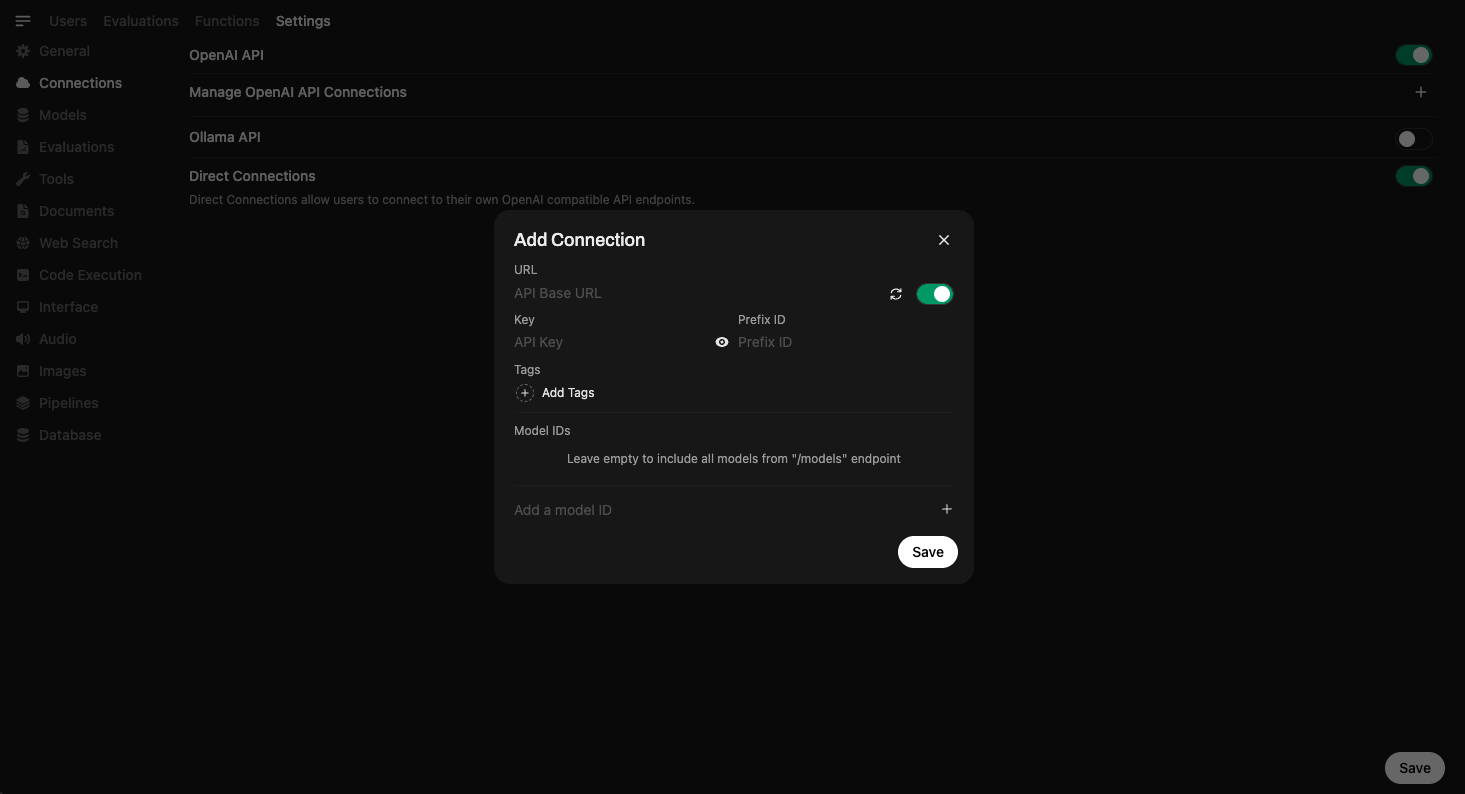
- Go to the ⚙️ Admin Settings.
- Navigate to Connections > OpenAI > Manage (look for the wrench icon).
- Click ➕ Add New Connection.
- OpenAI
- Azure OpenAI
- Connection Type: External
- URL:
https://api.openai.com/v1 - API Key: Your secret key (starts with
sk-...)
For Microsoft Azure OpenAI deployments.
- Find Provider Type and click the button labeled OpenAI to switch it to Azure OpenAI.
- URL: Your Azure Endpoint (e.g.,
https://my-resource.openai.azure.com). - API Version: e.g.,
2024-02-15-preview. - API Key: Your Azure API Key.
- Model IDs (Deployments): You must add your specific Deployment Names here (e.g.,
my-gpt4-deployment).
Advanced Configuration
-
Model IDs (Filter):
- Default (Empty): Auto-detects all available models from the provider.
- Set: Acts as an Allowlist. Only the specific model IDs you enter here will be visible to users. Use this to hide older or expensive models.
-
Prefix ID:
- If you connect multiple providers that have models with the same name (e.g., two providers both offering
llama3), add a prefix here (e.g.,groq/) to distinguish them. The model will appear asgroq/llama3.
- If you connect multiple providers that have models with the same name (e.g., two providers both offering
- Click Save ✅.
This securely stores your credentials.
If your API provider is slow to respond or you're experiencing timeout issues, you can adjust the model list fetch timeout:
# Increase timeout for slow networks (default is 10 seconds)
AIOHTTP_CLIENT_TIMEOUT_MODEL_LIST=15
If you've saved an unreachable URL and the UI becomes unresponsive, see the Model List Loading Issues troubleshooting guide for recovery options.
Step 3: Start Using Models
Once your connection is saved, you can start using models right inside Open WebUI.
🧠 You don't need to download any models — just select one from the Model Selector and start chatting. If a model is supported by your provider, you'll be able to use it instantly via their API.
Here's what model selection looks like:
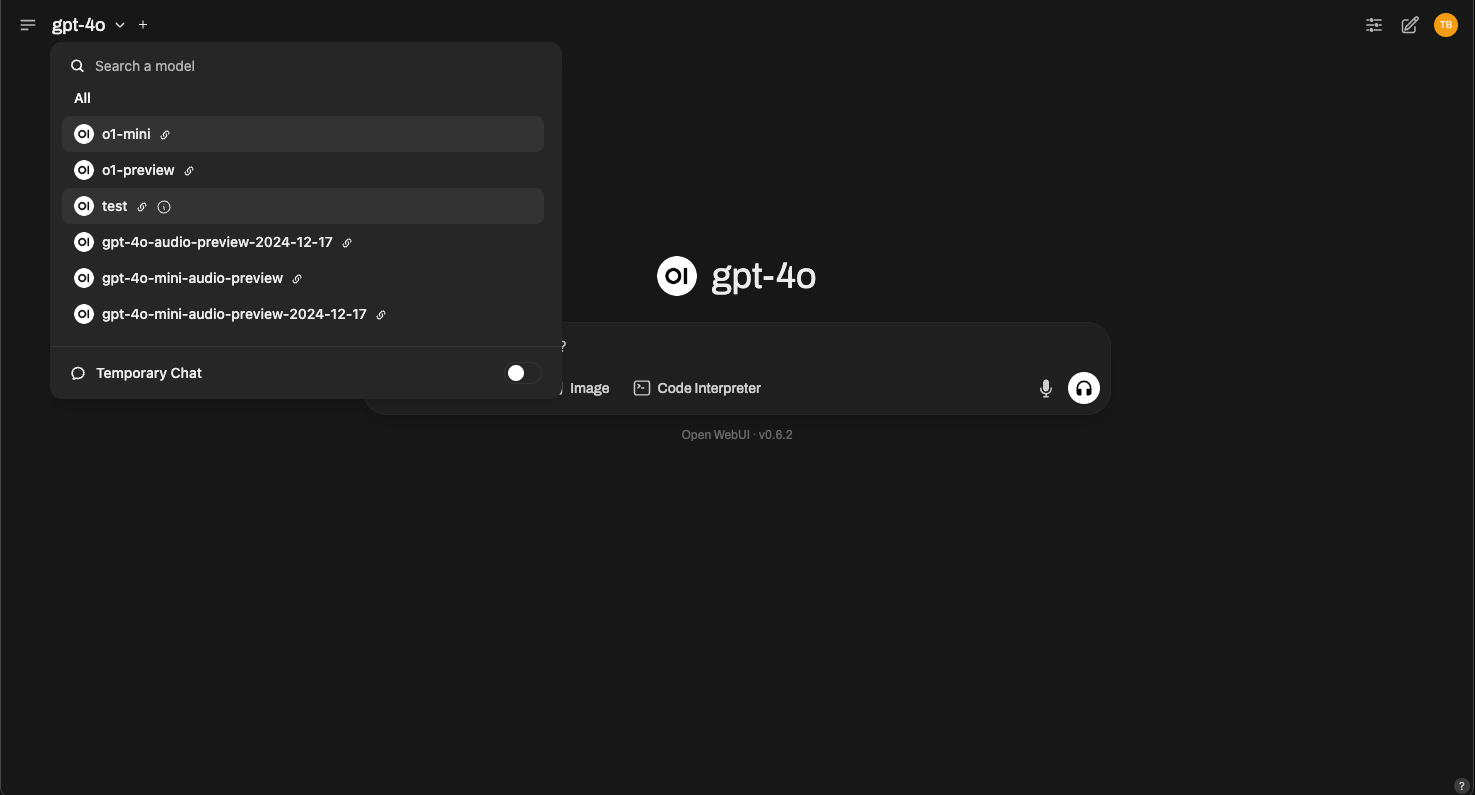
Simply choose GPT-4, o3-mini, or any compatible model offered by your provider.
All Set!
That's it! Your OpenAI API connection is ready to use.
If you want to connect other providers, see the Anthropic (Claude) guide or the OpenAI-Compatible Providers guide for Google Gemini, Mistral, Groq, DeepSeek, and more.
If you run into issues or need additional support, visit our help section.
Happy prompting! 🎉